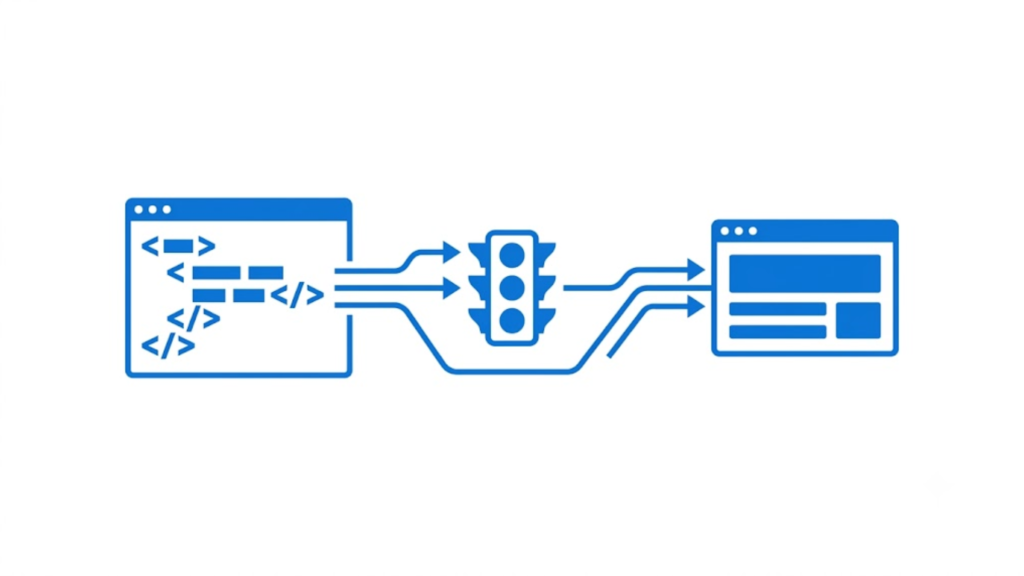
To convert HTML to WordPress, you need to turn the static HTML design into a WordPress theme and then move the website’s content into WordPress. HTML files are static pages, while WordPress uses themes, templates, PHP functions, and database-driven content to generate pages dynamically.
There is no single “HTML to WordPress” conversion button for a custom HTML website. The most reliable approach is to preserve the existing HTML/CSS design while replacing static page elements with WordPress template functions.
1. Separate the HTML website into reusable sections
Start by reviewing the existing HTML files and identifying repeated sections.
A typical static website may contain:
index.html
about.html
services.html
contact.html
css/style.css
js/script.js
images/
Look for the common header, navigation, footer, sidebar, and page-specific content.
For a classic WordPress theme, the common structure can become:
my-theme/
├── style.css
├── functions.php
├── index.php
├── header.php
├── footer.php
├── page.php
├── single.php
├── archive.php
└── assets/
    ├── css/
    ├── js/
    └── images/
WordPress classic themes use PHP template files, with style.css serving as the main stylesheet and index.php acting as the main fallback template. WordPress also supports separate template files such as header.php and footer.php for reusable sections.
2. Create a WordPress theme from the HTML
Create a new folder inside:
/wp-content/themes/
For example:
/wp-content/themes/my-theme/
Copy the existing CSS into the theme’s style.css and add the required WordPress theme header at the beginning:
/*
Theme Name: My HTML Conversion
Author: Your Name
Version: 1.0
*/
The style.css file is required for WordPress to recognize a classic theme and contains the theme’s configuration information.
Next, take the HTML layout and divide it into WordPress templates.
For example, move the opening HTML structure, <head>, logo, and navigation into:
header.php
Move the footer markup into:
footer.php
Then use these templates inside other files:
<?php get_header(); ?>

<main>
    Your page content here
</main>

<?php get_footer(); ?>
get_header() loads header.php, while get_footer() loads footer.php. This prevents you from duplicating the same header and footer across every page.
3. Replace static HTML content with WordPress content
This is the most important part of the conversion.
A static HTML page may contain:
<h1>About Our Company</h1>
<p>We provide web development services.</p>
Instead of hard-coding this content into the template, WordPress can retrieve the page title and content from its database:
<h1><?php the_title(); ?></h1>

<div class="content">
    <?php the_content(); ?>
</div>
This allows the page to be edited from the WordPress dashboard instead of modifying the PHP file every time.
For posts, archives, and other content types, WordPress uses its template system and The Loop to retrieve content from the database and output it through the theme.
4. Convert each static HTML page into WordPress pages
Suppose the original website contains:
index.html
about.html
services.html
contact.html
Create corresponding WordPress Pages:
Home
About
Services
Contact
Then use WordPress templates to control how these pages are displayed.
For a standard page, page.php can contain:
<?php get_header(); ?>

<main class="site-content">
    <?php
    if ( have_posts() ) :
        while ( have_posts() ) :
            the_post();

            the_title('<h1>', '</h1>');
            the_content();

        endwhile;
    endif;
    ?>
</main>

<?php get_footer(); ?>
The Loop is WordPress’s standard mechanism for retrieving and displaying content in theme templates.
If different pages require completely different layouts, you can create custom page templates rather than forcing every page into the same design.
5. Convert HTML navigation into WordPress navigation
Static HTML often contains links like:
<a href="about.html">About</a>
<a href="services.html">Services</a>
After migration, these URLs may no longer be correct.
WordPress navigation should be managed through WordPress rather than hard-coded wherever possible. For custom theme development, use WordPress functions and registered navigation areas so menu items can be managed from the dashboard.
Also replace hard-coded URLs for assets and pages. A static image might use:
<img src="images/logo.png">
A WordPress theme should generate the correct theme URL instead of assuming the current directory structure.
6. Load CSS and JavaScript correctly
Do not simply copy every <link> and <script> tag from the old HTML files into every WordPress template.
WordPress provides enqueue functions for loading stylesheets and scripts. For CSS, wp_enqueue_style() is the standard method and is normally used from functions.php.
For example:
function my_theme_assets() {
    wp_enqueue_style(
        'my-theme-style',
        get_stylesheet_uri()
    );

    wp_enqueue_script(
        'my-theme-script',
        get_template_directory_uri() . '/assets/js/script.js',
        array(),
        null,
        true
    );
}

add_action('wp_enqueue_scripts', 'my_theme_assets');
This gives WordPress control over how your theme assets are registered and loaded.
7. Replace hard-coded images with WordPress-compatible paths
Existing images can remain part of the theme if they are fixed design assets such as a logo or background image.
However, images that belong to page content should normally be moved into the WordPress Media Library. That makes them manageable through the dashboard and separates content from the theme.
For example, a static HTML site might have:
<img src="images/team.jpg" alt="Our team">
After migration, the image can be inserted into WordPress page content instead of being permanently embedded inside the theme template.
8. Convert blog or repeated content into WordPress posts
If the old HTML website contains dozens of manually created article pages, do not recreate every article as a separate hard-coded PHP template.
Create WordPress Posts and place the article content in the database.
Use single.php for individual posts and archive.php or other appropriate templates for listing groups of posts. WordPress’s template hierarchy determines which template is used for different types of requests.
For products, locations, team members, case studies, or other structured content, consider using custom post types rather than creating ordinary Pages for everything.
9. Test URLs, SEO elements, forms, and responsive layouts
After the conversion, compare the old HTML website with the WordPress version.
Check:
- Page URLs and redirects
- Page titles and meta descriptions
- Headings
- Canonical URLs
- Internal links
- Images and alt text
- Contact forms
- JavaScript functionality
- Mobile layout
- Navigation
- 404 pages
- XML sitemap
- Robots.txt
- Analytics and tracking
- Page speed
Do not assume that preserving the visual design means the migration is complete. The HTML version and WordPress version can look identical while having different URLs, metadata, internal links, or functionality.
10. Upload and activate the converted theme
When the theme is complete, place it in:
/wp-content/themes/
Then open the WordPress dashboard and activate it under the Themes section.
For a simple custom conversion, a classic theme can be built from the original HTML using PHP template files. WordPress also supports modern block themes, which use HTML templates and template parts rather than the traditional PHP-based theme structure.
HTML to WordPress conversion workflow
The practical process is:
Existing HTML website
        ↓
Separate header/footer/content
        ↓
Create WordPress theme
        ↓
Move CSS/JS/images
        ↓
Convert HTML into WordPress templates
        ↓
Create Pages and Posts
        ↓
Replace hard-coded links and content
        ↓
Test URLs, SEO, forms, and responsive design
        ↓
Activate the WordPress theme
The key point is that you are not simply changing .html files to .php. A proper conversion changes the static HTML website into a WordPress theme and moves editable website content into WordPress. That is what makes the converted site manageable through the WordPress dashboard while retaining the original design.
Solid Guides
How To Make Text Wrap Around An Image In Html
Are Html And Css Programming Languages
Do My Html Homework
How To Add Alt Tags To Images In Html
How To Create Multiple Web Pages In Html
How To Import An Html File Into Excel
How To Integrate WordPress Blog Into Html Website
How To Link A Css File To An Html File
How To Make More Than One Page In Html
How To Put An Image Beside Text In Html
How To Put Text Under An Image In Html
How To Write A Paragraph In Html
What Is The Purpose Of Html In Web Development
Which Of The Following Are Examples Of Html Objects