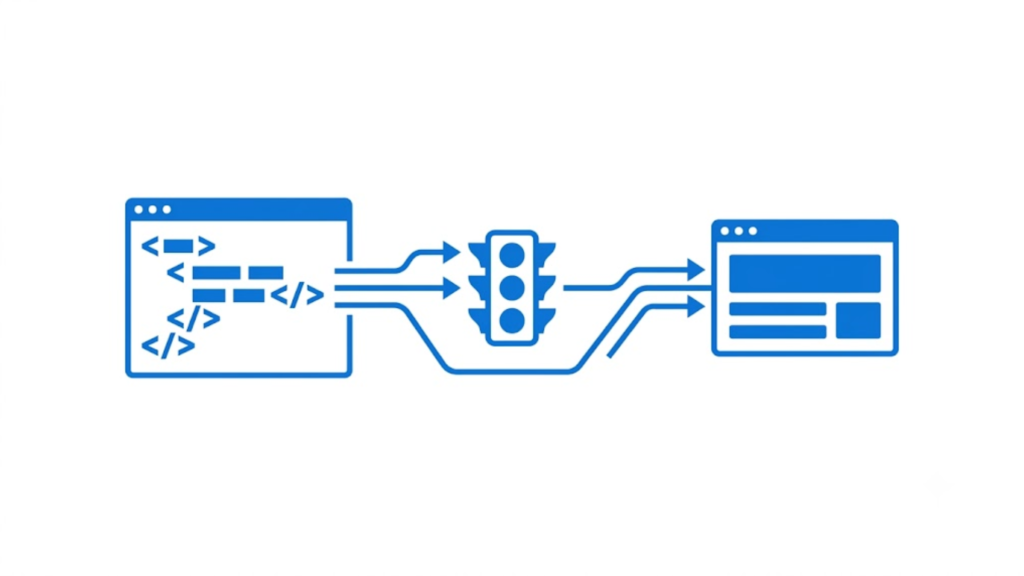
You can copy HTML code from a website using your browser’s View Page Source option or Inspect Element tool. View Page Source shows the HTML originally delivered by the server, while Inspect Element shows the current HTML structure of the page after JavaScript and other changes have been applied.
The correct method depends on what you want to copy.
Method 1: Copy the Full HTML Source Code
The easiest way to copy the original HTML code of a webpage is through View Page Source.
In Google Chrome
- Open the webpage.
- Right-click anywhere on the page.
- Select View page source.
- A new tab will open containing the page’s HTML source.
- Press Ctrl + A to select the source code.
- Press Ctrl + C to copy it.
- Paste the code into a code editor such as Notepad, VS Code, or an HTML editor.
You can also open the source directly by adding view-source: before the URL.
For example:
view-source:https://example.com
This displays the HTML document received by the browser.
Keyboard shortcut
In many browsers, you can open the page source with:
Ctrl + U
On macOS, use:
Command + Option + U
The source usually contains elements such as:
<!DOCTYPE html>
<html>
<head>
    <title>Example Page</title>
</head>
<body>
    <h1>Hello World</h1>
    <p>This is an example page.</p>
</body>
</html>
Method 2: Copy HTML From a Specific Element
Use Inspect Element when you only need a particular section of a webpage, such as a heading, button, navigation menu, form, table, or content section.
Steps in Chrome
- Open the webpage.
- Right-click the element you want to copy.
- Select Inspect.
- Chrome Developer Tools will open.
- The selected element will be highlighted in the Elements panel.
- Right-click the HTML element.
- Select Copy.
- Choose Copy element to copy the HTML for that element.
For example, you might see:
<div class="container">
    <h2>Website Title</h2>
    <p>Example content.</p>
</div>
Copying the element gives you that HTML structure rather than the entire webpage.
View Source vs. Inspect Element
These two methods are similar but do not always show exactly the same HTML.
View Page Source displays the original HTML source sent by the server. It is useful when you need the document’s original markup, including elements that may later be changed or generated by JavaScript.
Inspect Element displays the browser’s current DOM. JavaScript can modify this structure after the page loads, so the HTML shown in Developer Tools may differ from the original source.
For example, a page might initially contain:
<div id="products"></div>
JavaScript could then insert product information into that element. Inspect Element may show the generated product markup, while View Page Source may only show the empty <div>.
How to Copy HTML From a Website on Mobile
Copying an entire webpage’s HTML is more difficult on a phone because mobile browsers generally do not provide the same Developer Tools interface available on desktop.
The simplest option is to use a desktop or laptop browser.
Another option is to use a browser-based source viewer. Enter the webpage URL into the tool, and it can display the HTML source for copying.
For serious HTML inspection, Chrome, Firefox, Edge, or another desktop browser with Developer Tools is more practical.
How to Copy HTML for Only One Section
Suppose you want to copy only a website’s navigation menu.
Right-click the navigation area and select Inspect. Find the relevant element in the Elements panel, then right-click it and select:
Copy → Copy element
You can paste the result into your HTML file.
For example:
<nav>
    <a href="/">Home</a>
    <a href="/about/">About</a>
    <a href="/contact/">Contact</a>
</nav>
You can then modify the copied HTML for your own project.
What Happens to CSS and JavaScript?
Copying HTML does not automatically copy the complete appearance or functionality of a website.
A webpage normally depends on several components:
HTML → page structure
CSS → appearance and layout
JavaScript → dynamic behavior
Images/fonts → visual assets
External services → additional functionality
For example, copying:
<button class="buy-button">Buy Now</button>
does not automatically copy the CSS responsible for its design or the JavaScript that makes it perform an action.
You may need to inspect the associated CSS files, JavaScript files, images, fonts, and other resources separately.
How to Find the HTML for an Image, Link, or Button
Use Inspect Element and click the specific item.
For an image, you may see:
<img src="image.jpg" alt="Example image">
For a link:
<a href="https://example.com">Visit Example</a>
For a button:
<button type="button">Submit</button>
This is useful when you are trying to understand how a particular element is constructed.
Can You Copy the HTML of Any Website?
Technically, HTML sent to your browser can generally be viewed because the browser needs that information to render the webpage. However, viewing or copying HTML does not automatically give you permission to reuse the website’s complete design, content, images, code, trademarks, or other copyrighted material.
For your own development work, copying a small HTML structure for reference or learning is different from reproducing an entire website.
Also remember that server-side code is not exposed through View Source or Inspect Element. Languages and systems such as PHP, Python, database queries, and server-side application code normally run on the server and are not sent to the browser as source code.
The Fastest Way to Copy HTML
For the entire original HTML, use:
Right-click → View Page Source → Ctrl + A → Ctrl + C
For one specific element, use:
Right-click element → Inspect → Right-click HTML → Copy → Copy element
For dynamically generated HTML, Inspect Element is usually the better option because it shows the page’s current DOM.
The key difference is simple: View Page Source gives you the original source HTML, while Inspect Element lets you copy the HTML currently represented in the browser’s DOM.
Relevant Guide
Do My Html Homework
How To Add Alt Tags To Images In Html
How To Create Multiple Web Pages In Html
How To Import An Html File Into Excel
How To Integrate WordPress Blog Into Html Website
How To Link A Css File To An Html File
How To Make More Than One Page In Html
How To Put An Image Beside Text In Html
How To Put Text Under An Image In Html
How To Write A Paragraph In Html
What Is The Purpose Of Html In Web Development
Which Of The Following Are Examples Of Html Objects
How To Convert Html To WordPress