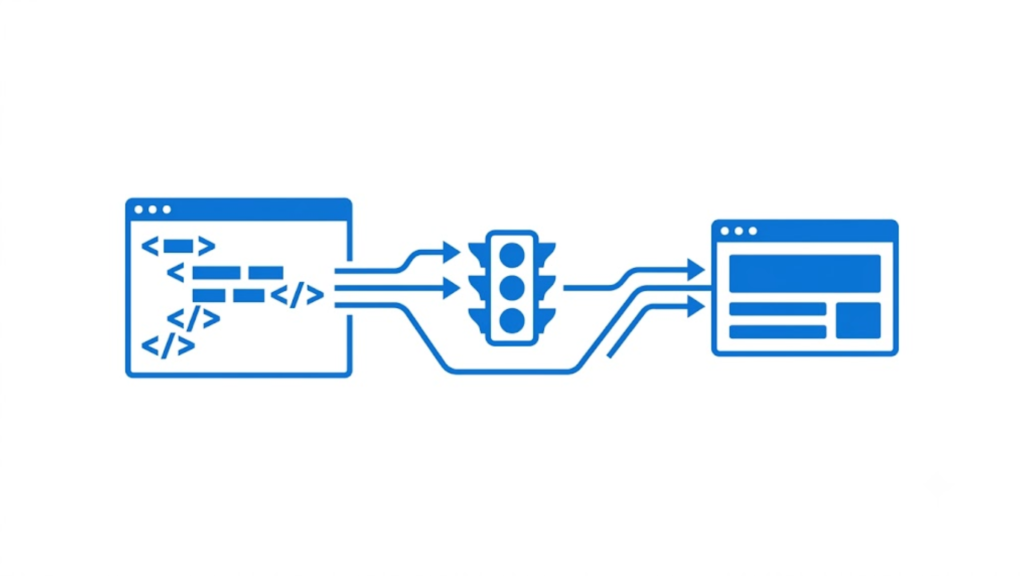
You cannot remove HTML tags from an image with HTML or CSS when those tags are already part of the image itself. In that case, you need to edit the image. If the HTML tags are only appearing on the webpage around the image, you need to fix the webpage code instead.
The correct solution depends on where the HTML tags are coming from.
If the HTML tags are part of the image
If you can actually see text such as <div>, <p>, <a>, <span>, or other HTML markup inside the image, that text has been saved into the image’s pixels.
For example, suppose you have a PNG or JPG showing:
<div>Example text</div>
That HTML is no longer active HTML. It is simply visual content inside the image.
In this situation, changing the <img> HTML tag will not remove it. You must open the image in an image editor and remove the unwanted text.
You can use tools such as Photoshop, GIMP, Photopea, Canva, or an AI image editor. Use an erase, healing, clone, or inpainting tool to remove the visible HTML text, then export the cleaned image.
For example:
<img src="image.jpg" alt="Example">
Changing this code will only change how image.jpg is displayed. It will not remove text that is already stored inside image.jpg.
If HTML tags are appearing outside the image
A different problem occurs when the image itself is clean, but HTML tags appear as visible text on your webpage.
For example, your page may incorrectly display:
<p>This is an image</p>
instead of rendering the paragraph normally.
In this case, the problem is not inside the image. The webpage is outputting HTML as plain text.
Check the code that generates the content. The HTML may have been escaped, converted into plain text, or inserted incorrectly by a CMS, WordPress plugin, JavaScript, or page builder.
Correct HTML should be interpreted by the browser, while escaped HTML such as:
<p>This is an image</p>
can appear visibly as text.
If you are using WordPress
If you are seeing HTML tags near an image in WordPress, check the page or post editor first.
Switch to the code or HTML view and look for incorrectly inserted markup. Also check custom HTML blocks, shortcode output, theme templates, and plugins that modify the content.
If the tags are visible inside the actual image, editing WordPress HTML will not remove them. You need to edit the image file itself and upload the corrected version.
The easiest way to identify the problem
There is a simple test.
Open the original image file directly in a browser or image viewer.
If the HTML tags are still visible inside the image, the tags are part of the image and you need an image editor.
If the image looks normal but the tags appear only when the image is displayed on your website, the problem is with your HTML, CSS, JavaScript, CMS, or page builder.
What HTML can and cannot do
HTML can control how an image is displayed, including its size, position, alternative text, and surrounding content.
For example:
<img src="example.png" alt="Example image">
However, HTML does not provide a way to erase text that has already been saved into the pixels of a JPG, PNG, WebP, or similar image.
That distinction is important because an image and the HTML used to display that image are two separate things.
Final answer
To remove HTML tags that are visible inside an image, edit the image itself and erase the text.
To remove HTML tags that are appearing on the webpage as text, fix the HTML or content that is generating them.
HTML cannot remove text that has already been baked into an image’s pixels.
Important HTML Guides
Can I Use Html With The Traffic Pass Safelist App
How To Add Html To Lioden Profile
How To Add Html Signature To Apple Mail
How To Add Textures In Html Games
How Do You Indent In Html
How Long Does It Take To Learn Html
How To Convert Html To Excel
How To Embed A Google Form In Html
How To Get Html Code From A Website
How To Hide Text In Html
What Are Tags In Websites
What Does Hr Stand For In Html