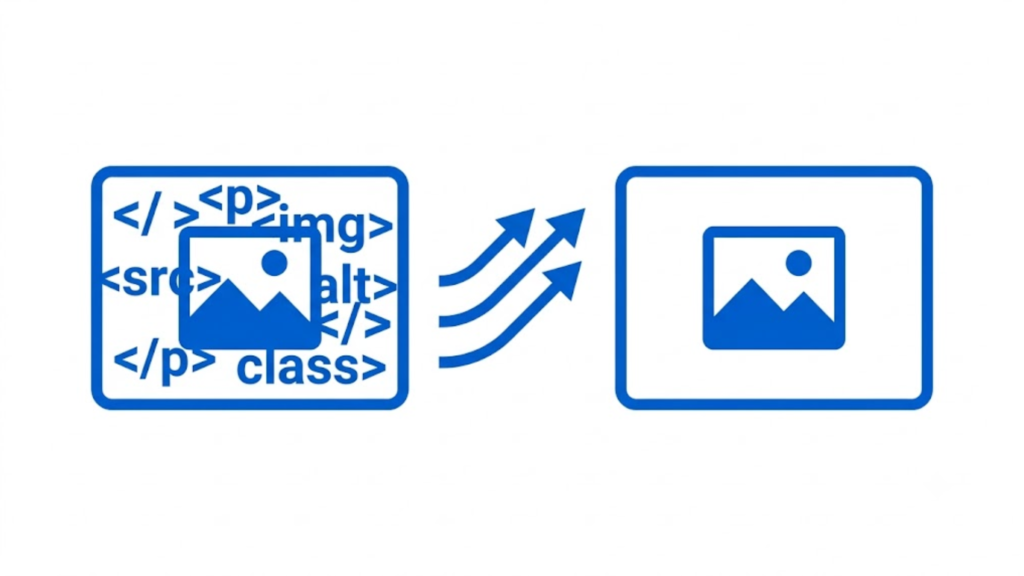
HTML and PowerPoint use different document models. HTML describes web content with elements such as <div>, <p>, <table>, CSS, and JavaScript, while PowerPoint uses slides containing text boxes, shapes, images, tables, charts, and other objects. Because of that difference, there is no reliable built-in PowerPoint command that converts an arbitrary HTML page directly into a fully editable .pptx file. Microsoft’s current supported PowerPoint formats include .pptx, .pptm, .odp, and several export formats, but HTML is not listed as a presentation format that PowerPoint can open for editing.
The correct conversion method depends on what you need from the final file: editable content or an accurate visual copy.
Method 1: Convert HTML into editable PowerPoint elements
For an editable presentation, the HTML needs to be rebuilt as PowerPoint objects. A JavaScript library such as PptxGenJS can generate standard .pptx files and supports text, tables, shapes, images, charts, and slide masters.
The process is:
- Read the HTML structure.
- Identify which content belongs on each slide.
- Extract text, images, tables, colors, spacing, and relevant styles.
- Create a PowerPoint slide for each HTML section.
- Add the content as native PowerPoint objects.
- Save the result as
.pptx.
An HTML heading can become a PowerPoint text box, an HTML image can become a PowerPoint image, and an HTML table can become a PowerPoint table.
PptxGenJS includes a tableToSlides function specifically for HTML tables. It can reproduce table styling, create additional slides when a table overflows, and repeat headers when needed. Its HTML support is focused on tables rather than arbitrary web-page layouts, so complex CSS cannot simply be transferred unchanged.
This method is appropriate when the PowerPoint user needs to edit text, move objects, change colors, or continue designing the presentation.
Method 2: Render the HTML and place each slide into PowerPoint as an image
When visual accuracy matters more than editability, rendering the HTML first is usually the simpler approach.
Design or divide the HTML into fixed-size slide pages, such as 16:9 sections. Render each page in a browser engine so the browser applies the CSS, fonts, images, and layout. Then insert each rendered page into PowerPoint as a full-slide image.
The result is a .pptx presentation, but each slide is effectively a picture. The HTML elements are not separate PowerPoint objects, so individual text, buttons, shapes, or CSS sections cannot be edited normally in PowerPoint.
This approach works well for HTML presentations with complex CSS, custom fonts, dashboards, positioned elements, or JavaScript-generated visuals that would be difficult to recreate as native PowerPoint objects.
Method 3: Use an HTML-to-PowerPoint converter
An online or desktop HTML-to-PowerPoint converter can automate much of the process. However, check what the converter actually creates. Some tools recreate content as editable PowerPoint objects, while others place a rendered version of the page into the slide.
Before converting, verify that the output is .pptx, text remains editable when required, images and fonts are preserved, HTML sections are divided into separate slides correctly, and the service handles CSS layouts used by your page. For confidential HTML, a local conversion workflow avoids uploading the source to a third-party service.
Why copy and paste is not a true conversion
Copying an HTML page into PowerPoint does not convert the web layout into a native slide structure. Web pages can depend on CSS positioning, responsive rules, browser fonts, JavaScript, and screen dimensions. PowerPoint does not reproduce those browser rules as editable slide objects.
A pasted page may therefore show different spacing, font sizes, table layouts, or positioning. Rendering the HTML as an image avoids most of those layout differences, while rebuilding the page as native PPTX objects gives editability but requires more work.
Which method should you use?
Use native PPTX generation when the final presentation must be editable. Use HTML rendering plus images when preserving the original design is the priority. Use a converter when convenience matters and you can verify the resulting file.
For HTML that is already designed as a slide deck, create one fixed-size HTML section per slide, render each section consistently, and package the results into a .pptx. For data-heavy HTML tables, PptxGenJS can generate actual PowerPoint tables instead of screenshots.
The key point is that HTML-to-PowerPoint is not simply a file-extension change. A reliable conversion requires either rebuilding the HTML structure as PowerPoint objects or rendering the HTML and placing the rendered result into slides. Choose based on the required output: editable PowerPoint content or the closest possible visual match to the original HTML.
More Guide On HTML
How To Change Plain Text Email To Html
How To Make Text Wrap Around An Image In Html
Are Html And Css Programming Languages
Do My Html Homework
How To Add Alt Tags To Images In Html
How To Create Multiple Web Pages In Html
How To Import An Html File Into Excel
How To Integrate WordPress Blog Into Html Website
How To Link A Css File To An Html File
How To Make More Than One Page In Html